

How to put your stamp card in Apple Wallet and Google Wallet
A stamp card in the customer's wallet is always with them, updates itself and needs no app. Here is what it takes, and how to do it without building anything yourself.
Updated · 3 min read · Written by Klipz
What is a wallet card?
Apple Wallet on iPhone and Google Wallet on Android are where the customer keeps their payment cards, boarding passes and tickets. They are on the phone already. A stamp card can sit in the same place: the customer opens their wallet and shows the card's QR code, and when you stamp, the card updates at once, with a note on the lock screen.
When the customer is near your shop, the card can come up on the lock screen with a message you write. The customer doesn't download anything.
Can I make it myself?
You can, but it is a developer project. A card for Apple Wallet must be signed with a certificate from a paid Apple Developer account, and a card for Google Wallet needs an issuer account with Google. On top of that you need a server that updates the card every time you stamp, and a way to scan the card at the counter.
For most shops it is easier to use a service that has done that work. That is what Klipz is, and there are others; here they are compared.
How to do it with Klipz
- Create a free account at app.klipz.dk. You need no payment card to start.
- Make your card. Choose a stamp card, punch card, points card or one-time card, the reward and the number of stamps, and give it your logo and colours. You can also design it here on the site and take it with you when you sign up.
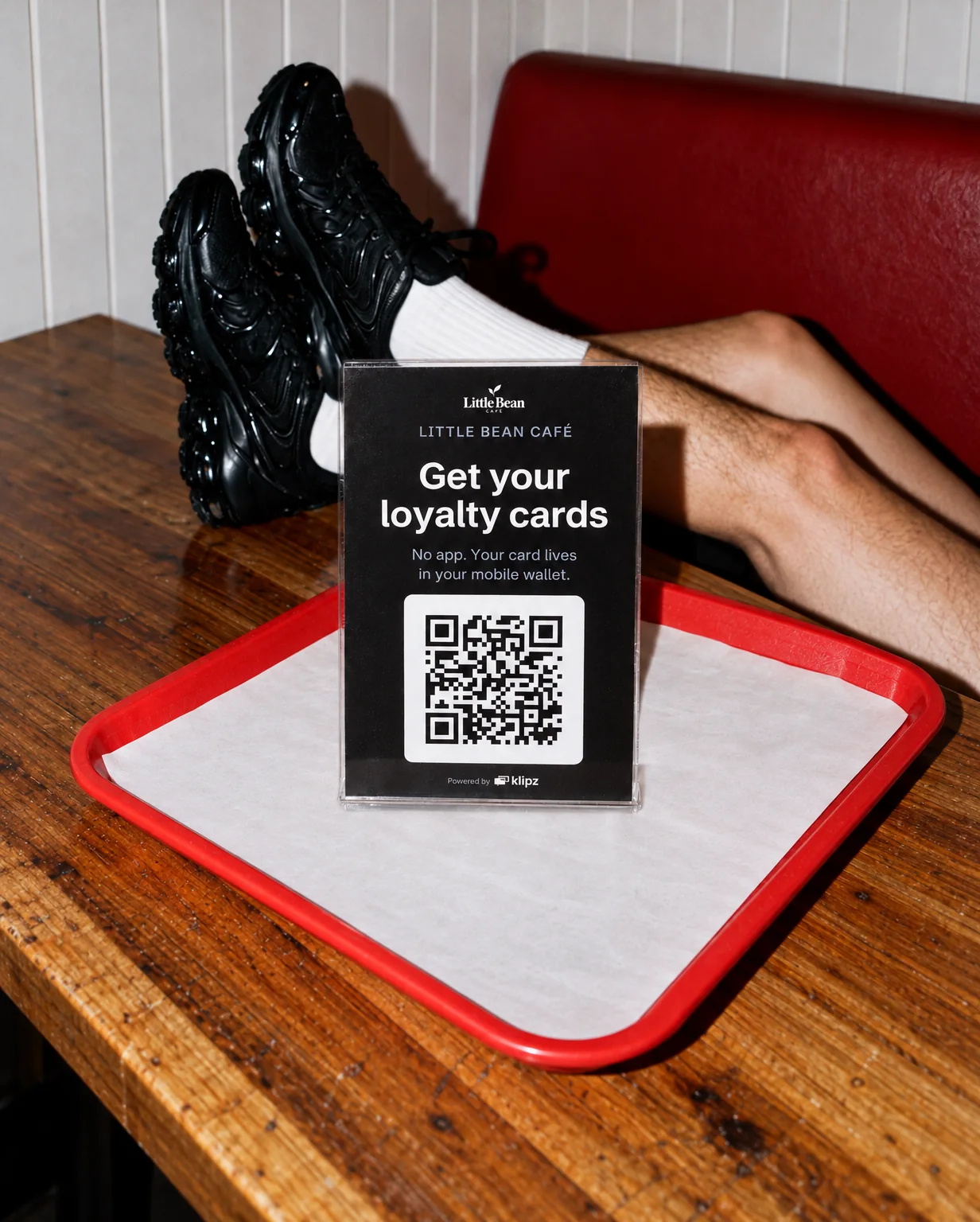
- Put the QR stand on the counter. Print it as a PDF, or order a free acrylic QR stand once you have added a payment card.
- The customer scans with the camera. The first time, they enter their email, a code we send, and their first name, and the card goes into Apple Wallet or Google Wallet.
- You stamp at the counter. Open Klipz in the browser on your phone and scan the QR code on the customer's card. The stamp lands at once.
- The reward is handed over. On the last stamp Klipz tells you, and the card starts over.
What the customer sees
- No app to download, on iPhone or Android.
- The card is on the phone, so it is never left at home.
- If the customer changes phone, the card comes along, because it belongs to their Klipz account.
- Emails from the shop only if they said yes.
What it takes from you
A phone or computer with a browser. Nothing to install, no till integration and no equipment beyond the QR stand. The dashboard itself is in English, and our support is in Danish.